To troubleshoot lip-sync, buffering, and HDMI handshake issues, isolate the symptom first: network instability causes buffering, audio-processing delays cause lip-sync problems, and HDMI or HDCP negotiation failures cause no-signal, flicker, or device-recognition errors. Fix one path at a time instead of replacing cables randomly.
Home-Theater Fix Path: Start with the simplest repeatable test, restart the chain, separate internet problems from device problems, then adjust audio delay or HDMI settings only after you know which device is causing the issue.
Start With the Symptom, Not the Cable Drawer
Home entertainment problems often feel connected because they happen in the same evening. A movie buffers, the sound drifts, then the screen flashes when switching inputs. The temptation is to blame the newest device or buy a premium cable. That may waste time.
Begin by naming the symptom. Buffering means the stream cannot load smoothly or the app is struggling to maintain playback. Lip-sync means audio and video arrive at different times. HDMI handshake issues mean devices fail to exchange display, copy-protection, or capability information cleanly.
The official Netflix help page on buffering and slow loading is a useful first stop for streaming problems. For HDMI standards context, the HDMI Licensing Administrator's HDMI.org site identifies the organization behind HDMI specification administration and education.
Step 1: Separate Network Problems From Device Problems
If the problem is buffering, test whether it follows the app, device, or network. Open another streaming app on the same device. Then open the same app on another device. If all apps buffer on one device, the device or its Wi-Fi position may be the issue. If one app buffers everywhere, the app account, service, or content path may be the issue. If every device struggles, focus on the network.
Restart the modem, router, and streaming device. Move the device closer to the router or test with Ethernet if available. Pause large downloads and cloud backups. Check whether 4K streaming is forcing the network to carry more than it can handle reliably.
Do not rely on one speed test alone. Speed tests can look fine while Wi-Fi stability, router congestion, or device memory still causes playback trouble. The goal is stable delivery to the device, not just a large number from the internet provider.
Step 2: Fix Audio Delay Methodically
Lip-sync issues often come from processing delays. A TV, soundbar, receiver, console, or streaming box may be processing video and audio at different speeds. The fix depends on whether audio is early or late.
Start by simplifying the route. If the streaming box connects to the TV and the TV sends audio to a soundbar, test the TV speakers alone. If sync improves, the audio path is involved. If the issue remains, test a different app or input.
Then look for audio delay or AV sync settings in the TV, soundbar, receiver, or streaming device. Adjust in small increments and test dialogue scenes where faces are visible. Roku's official support article on audio and video sync issues is a useful example of device-specific guidance.
Avoid changing multiple settings at once. If you switch audio formats, enable game mode, change HDMI ports, and adjust delay together, you will not know which action helped.
Step 3: Reset the HDMI Chain
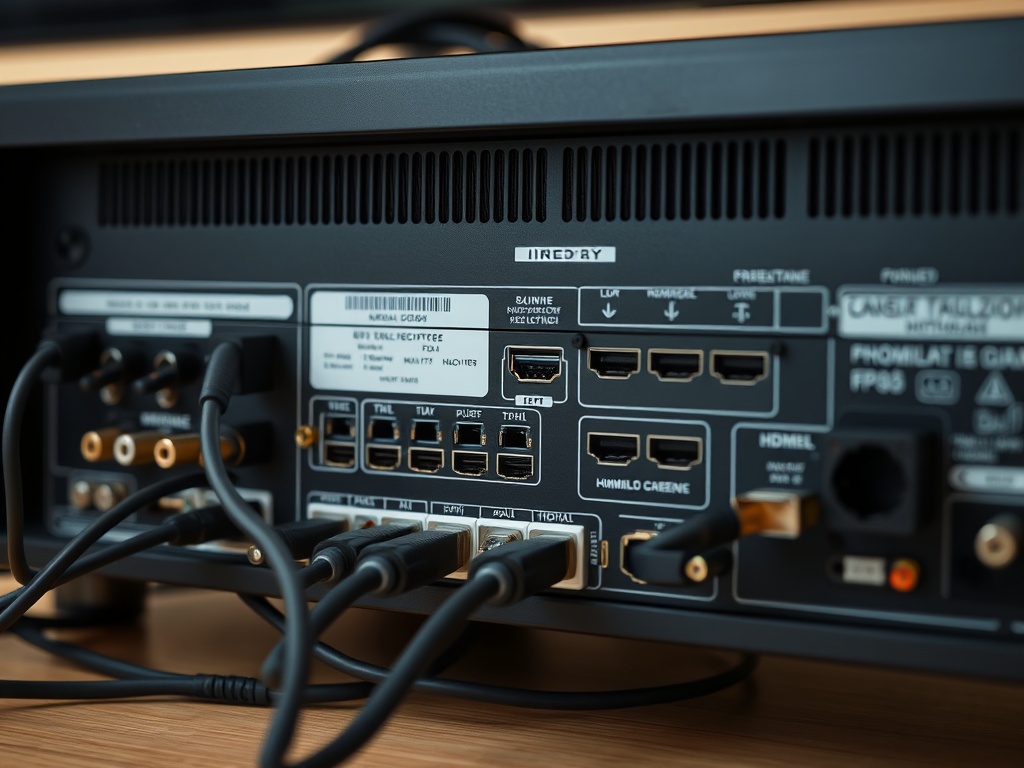
HDMI handshake issues often appear as “no signal,” flicker, black screens, resolution mismatches, HDCP errors, or audio format confusion. The handshake depends on the source, cable, display, receiver or soundbar, and sometimes adapters or splitters.
Use a clean reset sequence. Turn off every device. Unplug power from the TV, source, receiver, and streaming box. Disconnect HDMI cables. Wait, then reconnect the simplest path: source directly to TV with one cable. Power on the TV first, then the source. If the direct path works, add the receiver or soundbar back into the chain.
CEDIA's guide to troubleshooting HDMI handshake failures is useful for more complex AV systems because it discusses field issues such as EDID mismatches, cable faults, and firmware conflicts.
Troubleshooting Map for Common Symptoms
| Symptom | Likely Area | First Test |
|---|---|---|
| Video buffers or drops quality | Network, app, device memory | Try another app and restart router/device |
| Audio trails behind mouths | Audio processing or soundbar route | Test TV speakers, then adjust AV sync |
| Audio plays before mouths move | Video processing delay | Enable game/low-latency mode or adjust audio delay |
| No signal after switching inputs | HDMI handshake | Direct source-to-TV test with one cable |
| Flicker or black screen | Cable, port, resolution, HDCP | Lower resolution temporarily and test another port |
| Works on one device, not another | Device settings or app cache | Update firmware and reinstall app if needed |
Step 4: Know When Gear Is the Bottleneck
Sometimes the issue is not user error. Older HDMI cables may fail at higher bandwidths. Older receivers may not pass newer video formats cleanly. A TV app may be underpowered compared with an external streaming box. A router may be too far away or overloaded for high-bitrate content.
The key is to prove the bottleneck before buying. If a streaming box works perfectly on Ethernet, the Wi-Fi path is weak. If a source works directly into the TV but fails through the receiver, the receiver or cable path is suspect. If one HDMI port works and another fails, the port settings or hardware may differ.
Readers interested in device ecosystems can connect this with indie game clip momentum. Both topics reward testing the actual path rather than assuming the most visible element caused the outcome.
When to Call in Help
DIY works when the system is simple, the problem is repeatable, and you can test one change at a time. Get help when the setup includes a projector, long cable run, wall plates, matrix switcher, multiple zones, custom control system, or persistent HDCP errors. Professional installers have test tools that can identify cable and handshake failures faster than guesswork.
Document the problem before calling. Write down the devices, cable paths, HDMI ports, app names, resolution settings, audio format, and when the issue appears. A short phone video of the symptom can help, as long as no private account information is shown.
For budgeting a fix, the article on what animation producers budget for offers an unexpected parallel: the cheapest solution is not always the one with the lowest sticker price. Time, failure risk, and repeated rework also cost something.
A Cleaner Viewing Setup From Here
The best next step is a one-page signal-path map. Draw the source, cable, TV, receiver, soundbar, router, and app path. Then mark where the symptom appears. Once the path is visible, troubleshooting becomes less emotional and more mechanical.
Start with restarts, app tests, Wi-Fi checks, audio sync settings, and a direct HDMI test. Replace equipment only after the same failure follows the same component through more than one test. A calm sequence will solve more problems than a drawer full of new cables.